Pro guide · from the Reel
Teach Claude your format once, for emails, notes and reports.
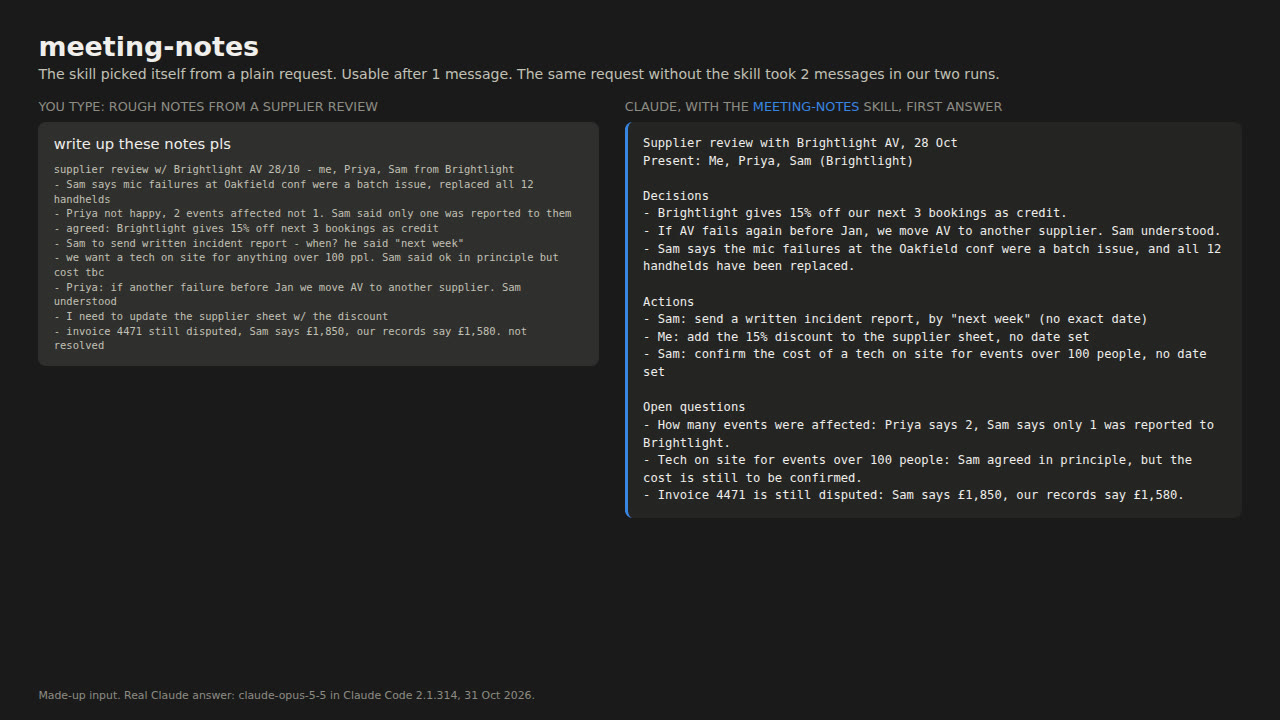
Save 8 short instruction files once, and you stop typing the same reminders to Claude every week. A quick "write up these notes pls" comes back as your meeting notes, in your format. In our test, the skills held a made-up person's usual format and the plain requests didn't mention it, the way quick requests usually don't. With the skills, Claude's first answer matched that format 30 times out of 32, as judged by a second Claude playing the person. Without them, once.
- 8 skills
- 5 steps
- One-time purchase
Published · Updated
See what you getGet everything free.
The first 150 readers get the whole guide and the kit free with their email. After that it is $12, one payment, no subscription. Price as of October 2026.
- 8 tested skill folders: email-reply, meeting-notes, weekly-report, thread-summary, tone-rewrite, sheet-formula, week-planner, first-draft
- install.sh: one paste installs all 8 in Claude Code without overwriting your edits
- One ZIP per skill for the Claude app upload, plus make_zips.py to rebuild them after you edit
- 16 made-up example requests to try each skill
- README with every step, and LICENSES.md
Access terms as of October 2026.
Free places are still open. Enter your email and we send your link.
Lost your link?
Enter the email you used for access. Your existing links keep working.
What it does
This is a plain request with no slash command, to the weekly-report skill. Rough notes from the week went in with one line:
weekly update for priya please, here's my notes
And this was Claude's first reply:
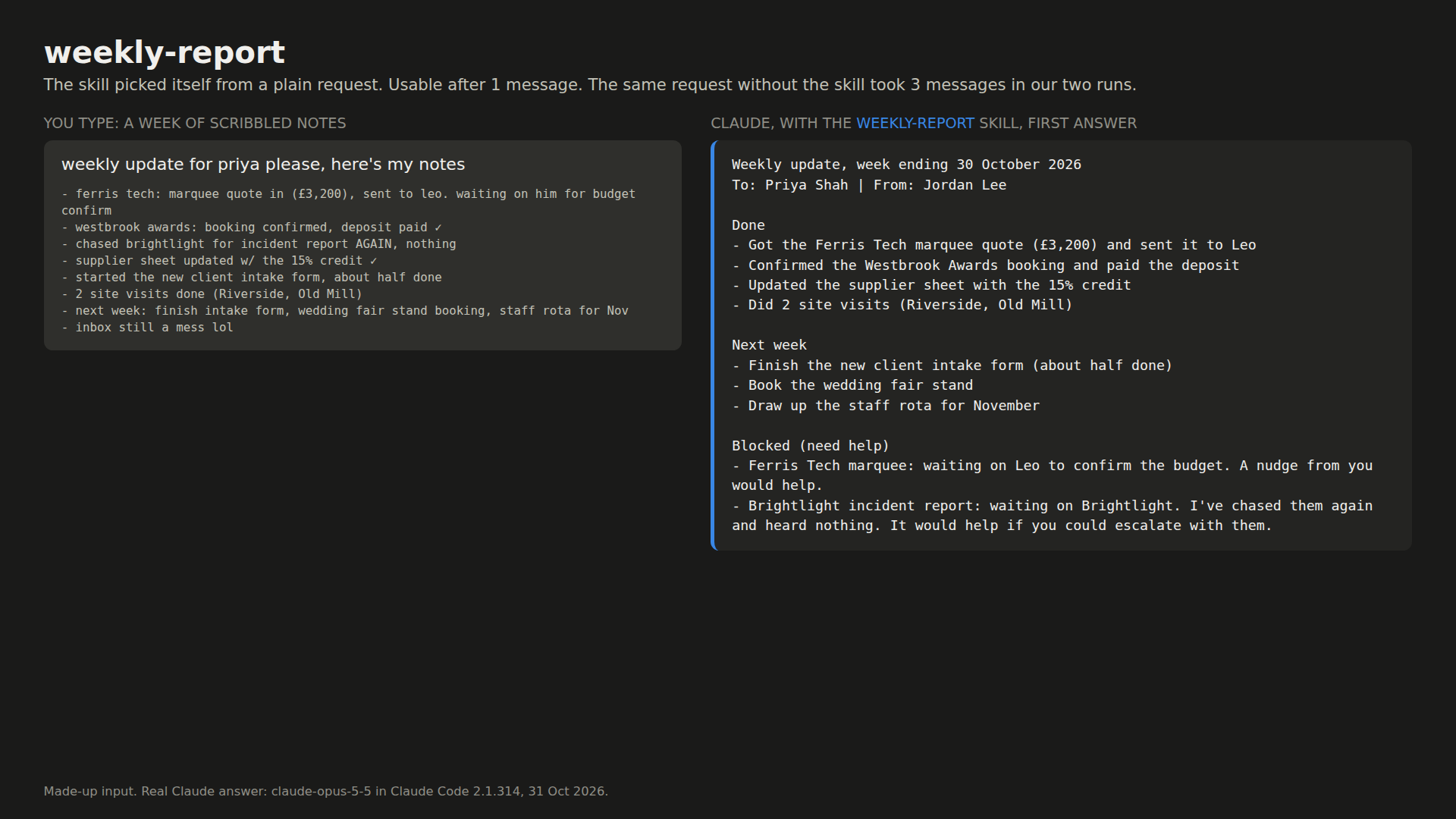
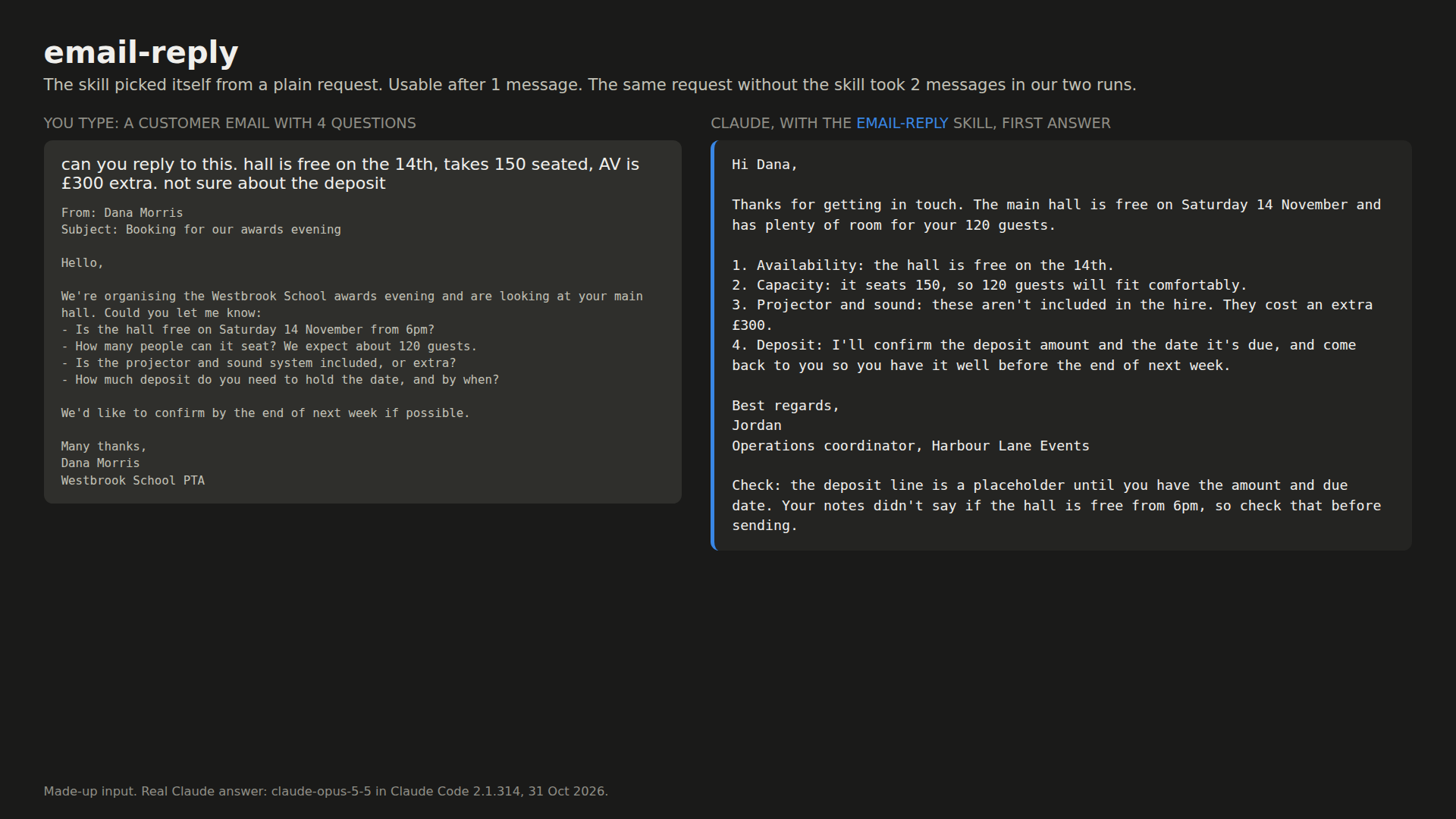
The inputs are made up, and the answer is Claude's real first reply. The same thing works for email. A customer email with 4 questions went in, and one reply came back:
What you get
Each skill is one short text file (29 to 42 lines; weekly-report also has a template file). A "Your settings" block at the top holds your name, your manager, your spreadsheet app and your hours.
| Skill | You type | You get |
|---|---|---|
| email-reply | "reply to this" + the email | One reply that answers every question, signed with your name |
| meeting-notes | "write up these notes" + notes or a transcript | Decisions, actions with owner and date, open questions, plain text |
| weekly-report | "weekly update for my boss" + rough notes | Done, next week, blocked, under 150 words |
| thread-summary | "tldr this" + an email chain or chat | Where things stand, what's decided, what's open, what you must do |
| tone-rewrite | "make this less harsh" + your text | One rewrite, no longer than yours, every fact kept |
| sheet-formula | "formula that flags overdue tasks" + a few rows | One formula for your app, which cell, a check on your rows |
| week-planner | "plan my week" + meetings and to-dos | One table in your hours, plus what doesn't fit |
| first-draft | "draft a proposal from these notes" | A one-page draft with the ask up top and missing facts marked |
The kit also has a one-paste install script for Claude Code, a ZIP of each skill for the Claude app, 16 example requests and a README.
What you need
- The Claude app or Claude Code: in the app, you need code execution turned on. Claude Code runs in the terminal or the Code tab of the Claude desktop app. We tested in Claude Code 2.1.314.
- A Claude plan: Claude Code needs a paid plan or API billing. For app plans, see the FAQ below.
- The kit: for step 1 you only need the file below.
The steps
Step 1: Try one skill
Steps 1 to 4 are one-time setup.
Start with meeting-notes, because its settings already work. Make a folder called meeting-notes and save this inside it as SKILL.md.
---
name: meeting-notes
description: Turns a meeting transcript or rough notes into short notes with decisions, actions (owner and date) and open questions. Use when asked to summarise, write up or note a meeting or call.
---

# Meeting notes

## Your settings (edit once)
- Where the notes go: a team chat or email, so plain text that pastes cleanly
- Date format: 14 Oct

## What to do
1. Read the whole transcript or notes before writing.
2. Pick out:
   - Decisions: choices the group clearly agreed to. Not ideas that were only mentioned. A request to get a quote or check something is an action, not a decision.
   - Actions: who does what by when. One person per action. If no one took it, write "Owner: not agreed". If there is no date, write "no date set".
   - Open questions: things raised but not settled, or waiting on someone who wasn't there.
3. Write the notes in exactly this shape:

```
[Meeting name], [date]
Present: [names]

Decisions
- ...

Actions
- [Name]: [task], by [date]

Open questions
- ...
```

Rules:
- Under 200 words in total.
- Plain text only: no bold, no headings with #, no tables, so it pastes into any chat app.
- Use names as they appear in the transcript. Don't add job titles.
- Keep numbers, amounts and dates exactly as said. If two people gave different numbers, write both under Open questions.
- Leave out small talk, jokes and who said what, unless it matters for an action.
- If a section is empty, write "- none".

Return only the notes.
In the Claude app, zip the folder so the ZIP holds meeting-notes/SKILL.md, not the file on its own. Turn on code execution under Settings > Capabilities, then go to Customize > Skills, click +, choose "Create skill" and upload the ZIP. These steps are from Anthropic's help center.
In Claude Code, open a terminal in the folder where you start Claude, the one that holds your new meeting-notes folder, and copy it into place:
mkdir -p .claude/skills
cp -r meeting-notes .claude/skills/
Then paste your notes after a request like "write up these notes pls". Claude should pick the skill by itself. If it doesn't, type /meeting-notes before your notes in Claude Code, or say "use meeting-notes" in the app.
Tip: keep the folder name the same as the name: line. The app upload needs that. In Claude Code, the copy above works in that folder only; Anthropic's skills docs say to use ~/.claude/skills/ to have it in every project. Claude Code picks up a new skill in the session that's already open, but if the .claude/skills folder didn't exist when you started it, run /reload-skills first.
Step 2: Fill in your settings
In the pro guide
Step 3: Install all 8 in Claude Code
In the pro guide
Step 4: Add them to the Claude app
In the pro guide
Step 5: Use them
In the pro guide
Questions people ask
Do I have to type a slash command?
No. We typed requests the way people do ("write up these notes pls", "tldr this chat") and Claude picked the right skill by itself in all 32 test chats. In Claude Code you can also type /meeting-notes to make sure.
Do they work in the Claude app and in Claude Code?
The same folders follow Anthropic's skill format for both. In Claude Code you copy them into ~/.claude/skills. In the app you upload one ZIP per skill under Customize > Skills, with code execution on. Anthropic's Claude Code docs say that if you sign in to Claude Code with your claude.ai account, skills turned on in the app also load there. We tested in Claude Code only.
Which Claude plan do I need?
Claude Code needs a paid plan or API billing. For the app, Anthropic's help center lists custom skills on Free, Pro, Max, Ultra, Team and Enterprise. Turn on code execution under Settings > Capabilities, then open Customize > Skills. On Team and Enterprise an owner can turn custom skills off.
Will the skills use less of my Claude limit?
Not in our test. They cut messages from 67 to 37 and Claude's written output by 27%, but the total tokens Claude Code reported went up 16%. Expect fewer retries, not a cheaper chat.
Can I change the format to the one my team uses?
Yes. Each skill is a short text file. Change the headings, word limits or rules in plain English, save, and start a new chat.
Read it on your computer
Keep this guide for later.
We'll send you this page's link and the other free guides.